Smoothing tri-meshes
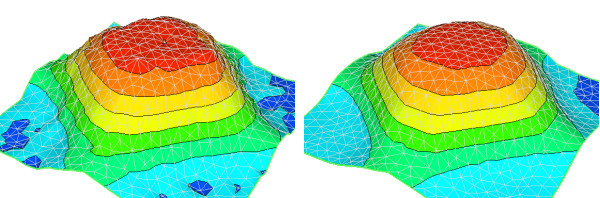
Before and after tri-mesh smoothing click to enlarge
Use the Smooth Surface (prepare > Post-Processing Tools > Tri-mesh Tools > Smoothing) form to reduce the number of spikes in tri-meshes. Other smoothing options, including refining surfaces and reducing nodes, are also available.
To use the tool:
- From the Source drop-down list, select the source that contains the tri-mesh that you want to smooth. All the available tri-meshes in the selected source are listed in the table below.
- Select the checkboxes next to the tri-meshes you want to smooth.
-
Select the smooth mode.
2D projection Select '2D projection' to remove any spikes from your data.
Node average Select 'Node average' to make the angles of the tri-meshes more equally distributed. This is required in geomechanical modeling.
-
Select smoothing options:
Resample tri-mesh Removes all original nodes and triangles and a regular spaced tri-mesh representation replaces the original surface.
Keep original boundary Retains the original tri-mesh boundary in the resampled tri-mesh.
Keep watertight connections Retains associated locked nodes at surface intersections in the resampled tri-mesh.
Smoothness (Less - More) Use the slider to find the proper range. The entry field next to the slider is updated accordingly, with a (reference) value between 0 and 100. You can use this value if you want to apply the exact same settings in another iteration. Internally, the tri-meshes are projected and resampled, and after this resampling a median filter is applied. When you choose the ‘less’ option, a high resolution resampling is applied, therefore only moderate smoothing will be applied.
- To smooth the tri-meshes, click OK or Apply.